GUIDES / SYNTH SETUPSYNTH SETUP
Set Up Your Synth How to set up each synth so MIDISketch's per-note bends come through. It's the same list MIDISketch shows under a loaded synth (the green ? ), kept up to date here.
240 synths and plugins // 104 with MPE // Updated 3 Oct 2026
Written from our own tests and each maker's manual. Synths change between versions, so a step here can be out of date or wrong. If one doesn't match what you see, tell us .
MPE COMPATIBLE Every note bends on its own. Turn on the synth's MPE and set its bend range to 48, so the pill at the top of MIDISketch reads MPE: 48st.
BASIC MIDI ONLY Notes and velocity play, but there's no MPE. Click the MPE pill and switch MIDISketch to PW (Pitch Wheel). Bends then move the whole synth together.
NOT COMPATIBLE / EFFECTS Effects and editors, and synths that only run inside FL Studio, like 3x Osc. Load a VST3 or AU instrument inside MIDISketch instead.
Popular: Serum 2 · Vital · Phase Plant · Pigments · Surge XT · Diva · Omnisphere 3 · Massive X
#
Pitch Wheel setup Switch to Pitch Wheel mode in MIDI Settings Set the plugin's pitch bend range to match MIDISketch's Pitch Wheel range A
Pitch Wheel setup Switch to Pitch Wheel mode in MIDI Settings Set the plugin's pitch bend range to match MIDISketch's Pitch Wheel range Pitch Wheel setup Switch to Pitch Wheel mode in MIDI Settings Set the plugin's pitch bend range to match MIDISketch's Pitch Wheel range MPE setup Enable MPE Set MPE pitch bend range to 48 MPE setup MPE button on main page Pitch Bend Up/Down › MPE Right-click › Lock MPE setup Click the small arrow at the bottom left to show the extended settings MIDI Mono Mode: On (Base Channel 1) Mono Mode Bend Range: 48 Logic's own instrument, so it can't load inside MIDISketch. Play it from MIDISketch MIDI FX in the track's MIDI FX slot. The Logic Pro guide shows how.
Alchemy's settings. Click to see it full size. MPE setup Settings (gear icon) › Enable MPE MPE Bend Range: 48 MPE setup Settings (gear icon) › Enable MPE MPE Bend Range: 48 MPE setup MPE-compliant engine Map the X, Y and Z axes in the UI MPE setup MPE-compliant engine Map the X, Y and Z axes in the UI Pitch Wheel setup No MPE support: loop-based sampler engine Hardware editor/librarian: generates no audio in DAW
Pitch Wheel setup Switch to Pitch Wheel mode in MIDI Settings Set the plugin's pitch bend range to match MIDISketch's Pitch Wheel range MPE setup Pseudo-MPE: Poly AT works but pitch bend hard-locked to +/-1 semitone. No CC74 MPE setup Settings (gear icon) › Enable MPE MPE Bend Range: 48 MPE setup Settings (gear icon) › Enable MPE MPE Bend Range: 48 MPE setup Settings (gear icon) › Enable MPE MPE Bend Range: 48 MPE setup Settings (gear icon) › Enable MPE MPE Bend Range: 48 MPE setup Settings (gear icon) › Enable MPE MPE Bend Range: 48 MPE setup Settings (gear icon) › Enable MPE MPE Bend Range: 48 MPE setup Settings (gear icon) › Enable MPE MPE Bend Range: 48 MPE setup Settings (gear icon) › Enable MPE MPE Bend Range: 48 MPE setup SYS Tab › MIDI › Enable MPE Set Pitch Bend: 48 MPE setup SYS Tab › MIDI › Enable MPE Set Pitch Bend: 48 B
MPE setup Pseudo-MPE: Poly AT works but pitch bend hard-locked to +/-1 semitone. No CC74 MPE setup MPE button on main page Pitch Bend Up/Down › MPE Right-click › Lock Pitch Wheel setup Switch to Pitch Wheel mode in MIDI Settings Set the plugin's pitch bend range to match MIDISketch's Pitch Wheel range MPE setup 1. Toggle MPE in Global Menu 2. Activate MPE on each Sound page MPE setup 1. Toggle MPE in Global Menu 2. Activate MPE on each Sound page MPE setup Dedicated MIDI MPE mode. Select MPE Play mode in Global Section MPE setup Configure 16 individual parts on channels 2-15 C
Effect plugin
MPE setup Settings › Interface › Enable MPE mode Effect plugin
MPE setup Enable MPE Set MPE pitch bend range to 48 MPE setup Enable MPE Set MPE pitch bend range to 48 MPE setup Settings (gear icon) › Enable MPE MPE Bend Range: 48 MPE setup Settings (gear icon) › Enable MPE Great for poly-aftertouch MPE setup Settings (gear icon) › Enable MPE MPE Bend Range: 48 MIDI chord/arp generator: not a synth
MPE setup Keyboard Modulator panel › MPE On Drag Slide/Press sources to params MPE setup MPE button on main page Pitch Bend Up/Down › MPE Right-click › Lock MPE setup Filter effect: self-oscillate for MPE pitch Settings › MPE Bend Range MPE setup Settings (gear icon) › Enable MPE MPE Bend Range: 48 D
MPE setup Settings › Interface › Enable MPE mode MPE setup Params › MPE switch: On Set bend range to 48 MPE setup MPE button on main page Pitch Bend Up/Down › MPE Right-click › Lock MPE setup Settings › Interface › Enable MPE mode MPE bend range 48 Also shows up as dune3
MPE setup Settings › MIDI › Enable MPE MPE Pitch Bend: 48 Pitch Wheel setup No MPE support: FM algorithm limitations E
MPE setup Enable MPE in the MIDI settings Uses discrete channels for note on/off, pitch bend, CC74 and pressure MPE setup Settings (gear icon) › Enable MPE MPE Bend Range: 48 MPE setup Settings (gear icon) › Enable MPE MPE Bend Range: 48 MPE setup ROLI MPE synth: MPE presets ready MPE setup ROLI MPE synth: MPE presets ready Mod Panel › cog for pitch range Pitch Wheel setup Switch to Pitch Wheel mode in MIDI Settings Set the plugin's pitch bend range to match MIDISketch's Pitch Wheel range F
Effect plugin
Effect plugin
Effect plugin
Effect plugin
MPE setup Parts › MIDI Input: Omni Tree View › Add MPE Modulators for X/Y/Z MPE setup Parts › MIDI Input: Omni Tree View › Add MPE Modulators for X/Y/Z MPE setup Event Processors › load the 'MPE' script Z = Gain, Y = Timbre Set pitch bend to 48 in the ADV tab Effect plugin
Pitch Wheel setup Switch to Pitch Wheel mode in MIDI Settings Set the plugin's pitch bend range to match MIDISketch's Pitch Wheel range Pitch Wheel setup Switch to Pitch Wheel mode in MIDI Settings Set the plugin's pitch bend range to match MIDISketch's Pitch Wheel range Effect plugin
G
MPE setup Full MPE with chaotic oscillators. Route Mod outputs to Master Pitch via PB knob Pitch Wheel setup Switch to Pitch Wheel mode in MIDI Settings Set the plugin's pitch bend range to match MIDISketch's Pitch Wheel range Pitch Wheel setup Switch to Pitch Wheel mode in MIDI Settings Set the plugin's pitch bend range to match MIDISketch's Pitch Wheel range Effect plugin
MPE setup Settings › Interface › Enable MPE mode H
MPE setup No native MPE toggle: relies on DAW VST3 Note Expression MPE setup No native MPE toggle: relies on DAW VST3 Note Expression Pitch Wheel setup Switch to Pitch Wheel mode in MIDI Settings Set the plugin's pitch bend range to match MIDISketch's Pitch Wheel range Pitch Wheel setup Switch to Pitch Wheel mode in MIDI Settings Set the plugin's pitch bend range to match MIDISketch's Pitch Wheel range MPE setup MPE button on main page Pitch Bend Up/Down › MPE Right-click › Lock MPE setup MPE button on main page Pitch Bend Up/Down › MPE Right-click › Lock MPE setup Hardware MPE; VST is editor only: configure on physical unit Hardware editor/librarian: generates no audio in DAW
I
Forum claims MPE but official manual has no MPE documentation
Forum claims MPE but official manual has no MPE documentation
J
Pitch Wheel setup Switch to Pitch Wheel mode in MIDI Settings Set the plugin's pitch bend range to match MIDISketch's Pitch Wheel range MPE setup Settings (gear icon) › Enable MPE MPE Bend Range: 48 Pitch Wheel setup Switch to Pitch Wheel mode in MIDI Settings Set the plugin's pitch bend range to match MIDISketch's Pitch Wheel range Pitch Wheel setup No MPE support: ZEN-Core engine MPE setup Settings (gear icon) › Enable MPE MPE Bend Range: 48 MPE setup Settings (gear icon) › Enable MPE MPE Bend Range: 48 Pitch Wheel setup Switch to Pitch Wheel mode in MIDI Settings Set the plugin's pitch bend range to match MIDISketch's Pitch Wheel range K
Pitch Wheel setup Switch to Pitch Wheel mode in MIDI Settings Set the plugin's pitch bend range to match MIDISketch's Pitch Wheel range MPE setup No native MPE: needs multi-channel routing The library must support per-channel pitch bend MPE setup No native MPE: needs multi-channel routing The library must support per-channel pitch bend MPE setup No native MPE: needs multi-channel routing The library must support per-channel pitch bend MPE setup No native MPE: needs multi-channel routing The library must support per-channel pitch bend Pitch Wheel setup Switch to Pitch Wheel mode in MIDI Settings Set the plugin's pitch bend range to match MIDISketch's Pitch Wheel range Pitch Wheel setup No MPE: Poly Aftertouch only Disable your DAW's MPE mode and send on Ch 1 Pitch Wheel setup Switch to Pitch Wheel mode in MIDI Settings Set the plugin's pitch bend range to match MIDISketch's Pitch Wheel range MPE setup Settings (gear icon) › Enable MPE MPE Bend Range: 48 Pitch Wheel setup No MPE: Poly Aftertouch only Disable your DAW's MPE mode and send on Ch 1 Pitch Wheel setup Switch to Pitch Wheel mode in MIDI Settings Set the plugin's pitch bend range to match MIDISketch's Pitch Wheel range Pitch Wheel setup No MPE: Poly Aftertouch only Disable your DAW's MPE mode and send on Ch 1 L
Pitch Wheel setup Switch to Pitch Wheel mode in MIDI Settings Set the plugin's pitch bend range to match MIDISketch's Pitch Wheel range Pitch Wheel setup Switch to Pitch Wheel mode in MIDI Settings Set the plugin's pitch bend range to match MIDISketch's Pitch Wheel range Effect plugin
MPE setup Physical modeling EP: MPE compatible Load the Expressive Suite presets MPE setup Physical modeling EP: MPE compatible Load the Expressive Suite presets M
Pitch Wheel setup Switch to Pitch Wheel mode in MIDI Settings Set the plugin's pitch bend range to match MIDISketch's Pitch Wheel range MPE setup Settings (gear) › MPE Enabled: deep MPE routing built in Pitch Wheel setup Switch to Pitch Wheel mode in MIDI Settings Set the plugin's pitch bend range to match MIDISketch's Pitch Wheel range Pitch Wheel setup Switch to Pitch Wheel mode in MIDI Settings Set the plugin's pitch bend range to match MIDISketch's Pitch Wheel range MPE setup Settings › Interface › Enable MPE mode MPE setup Settings (gear icon) › Enable MPE MPE Bend Range: 48 MPE setup Settings (gear icon) › Enable MPE MPE Bend Range: 48 MPE setup Settings (gear icon) › Enable MPE MPE Bend Range: 48 MPE setup Settings (gear icon) › Enable MPE MPE Bend Range: 48 Pitch Wheel setup No MPE: monophonic, single channel Portamento / glide only Pitch Wheel setup Switch to Pitch Wheel mode in MIDI Settings Set the plugin's pitch bend range to match MIDISketch's Pitch Wheel range Pitch Wheel setup Switch to Pitch Wheel mode in MIDI Settings Set the plugin's pitch bend range to match MIDISketch's Pitch Wheel range Pitch Wheel setup Switch to Pitch Wheel mode in MIDI Settings Set the plugin's pitch bend range to match MIDISketch's Pitch Wheel range Pitch Wheel setup No MPE support: legacy modular architecture Pitch Wheel setup No MPE: Poly Aftertouch only Disable your DAW's MPE mode and send on Ch 1 Pitch Wheel setup No MPE: Poly Aftertouch only Disable your DAW's MPE mode and send on Ch 1 Pitch Wheel setup Switch to Pitch Wheel mode in MIDI Settings Set the plugin's pitch bend range to match MIDISketch's Pitch Wheel range Pitch Wheel setup Switch to Pitch Wheel mode in MIDI Settings Set the plugin's pitch bend range to match MIDISketch's Pitch Wheel range Pitch Wheel setup No MPE: monophonic, single channel Portamento / glide only MPE setup Settings (gear icon) › Enable MPE MPE Bend Range: 48 Pitch Wheel setup No MPE: Poly Aftertouch only Disable your DAW's MPE mode and send on Ch 1 Pitch Wheel setup No MPE: Poly Aftertouch only Disable your DAW's MPE mode and send on Ch 1 Pitch Wheel setup No MPE: Poly Aftertouch only Disable your DAW's MPE mode and send on Ch 1 N
Pitch Wheel setup Switch to Pitch Wheel mode in MIDI Settings Set the plugin's pitch bend range to match MIDISketch's Pitch Wheel range Effect plugin
Effect plugin
No steps yet. With it loaded inside MIDISketch, Check MPE tests it.
No steps yet. With it loaded inside MIDISketch, Check MPE tests it.
No steps yet. With it loaded inside MIDISketch, Check MPE tests it.
MPE setup Expressive E: built for MPE O
Pitch Wheel setup Switch to Pitch Wheel mode in MIDI Settings Set the plugin's pitch bend range to match MIDISketch's Pitch Wheel range MPE setup ⚠ User-reported frequent crashes when hosted: load at your own risk Also shows up as omnisphere3
MPE setup System › MPE: On MPE Pitch Bend Range: 48 MPE setup Settings (gear icon) › Enable MPE MPE Bend Range: 48 Pitch Wheel setup No MPE: Poly Aftertouch only Disable your DAW's MPE mode and send on Ch 1 Pitch Wheel setup No MPE: Poly Aftertouch only Disable your DAW's MPE mode and send on Ch 1 MPE setup Enable MPE in the MIDI settings Uses discrete channels for note on/off, pitch bend, CC74 and pressure Pitch Wheel setup No MPE support: loop-based sampler engine Effect plugin
Effect plugin
P
MPE setup Uses Steinberg VST Note Expression: works in Cubase only, not in Bitwig or Studio One Also shows up as phaseplant
MPE setup Voice › Play Mode: Poly Bend: 48 Add MPE Pressure/Timbre modules for expression MPE setup Options › MIDI › Listen to MPE Set Bend Range to 48 MPE setup Options › MIDI › Listen to MPE Set Bend Range to 48 MPE setup Settings (gear icon) › MPE: On MPE Bend Range: 48 MPE setup Settings (gear icon) › MPE: On MPE Bend Range: 48 MPE setup Settings (gear icon) › MPE: On MPE Bend Range: 48 MPE setup MPE ready (reported working well with MPE on Discord, 2026-09) Pitch Wheel setup Switch to Pitch Wheel mode in MIDI Settings Set the plugin's pitch bend range to match MIDISketch's Pitch Wheel range MPE setup Poly MPE Play modes + PB range up to 48st. Select in Global Section MPE setup Settings (gear icon) › Enable MPE MPE Bend Range: 48 MPE setup Settings (gear icon) › Enable MPE MPE Bend Range: 48 MPE setup Settings (gear icon) › Enable MPE MPE Bend Range: 48 MPE setup Enable MPE Set MPE pitch bend range to 48 Q
MPE setup Full MPE: per-note pressure, pitch bend and timbre for granular control MPE setup Full MPE: per-note pressure, pitch bend and timbre for granular control R
Effect plugin
Effect plugin
MPE setup Requires MPE-compatible Blocks or Ensembles from User Library MPE setup Requires MPE-compatible Blocks or Ensembles from User Library MPE setup Enable MPE Set MPE pitch bend range to 48 Effect plugin
MPE setup MPE button on main page Pitch Bend Up/Down › MPE Right-click › Lock MPE setup MPE button on main page Pitch Bend Up/Down › MPE Right-click › Lock MPE setup MPE button on main page Pitch Bend Up/Down › MPE Right-click › Lock MPE setup Requires DAW VST3 Note Expression conversion MPE setup Enable MPE Set MPE pitch bend range to 48 S
MPE setup Enable MPE Set MPE pitch bend range to 48 MPE setup Works out of the box. Its pitch bend is limited to 12 st: set MIDISketch's MPE bend range to 12 MPE setup Works out of the box. Its pitch bend is limited to 12 st: set MIDISketch's MPE bend range to 12 Effect plugin
Effect plugin
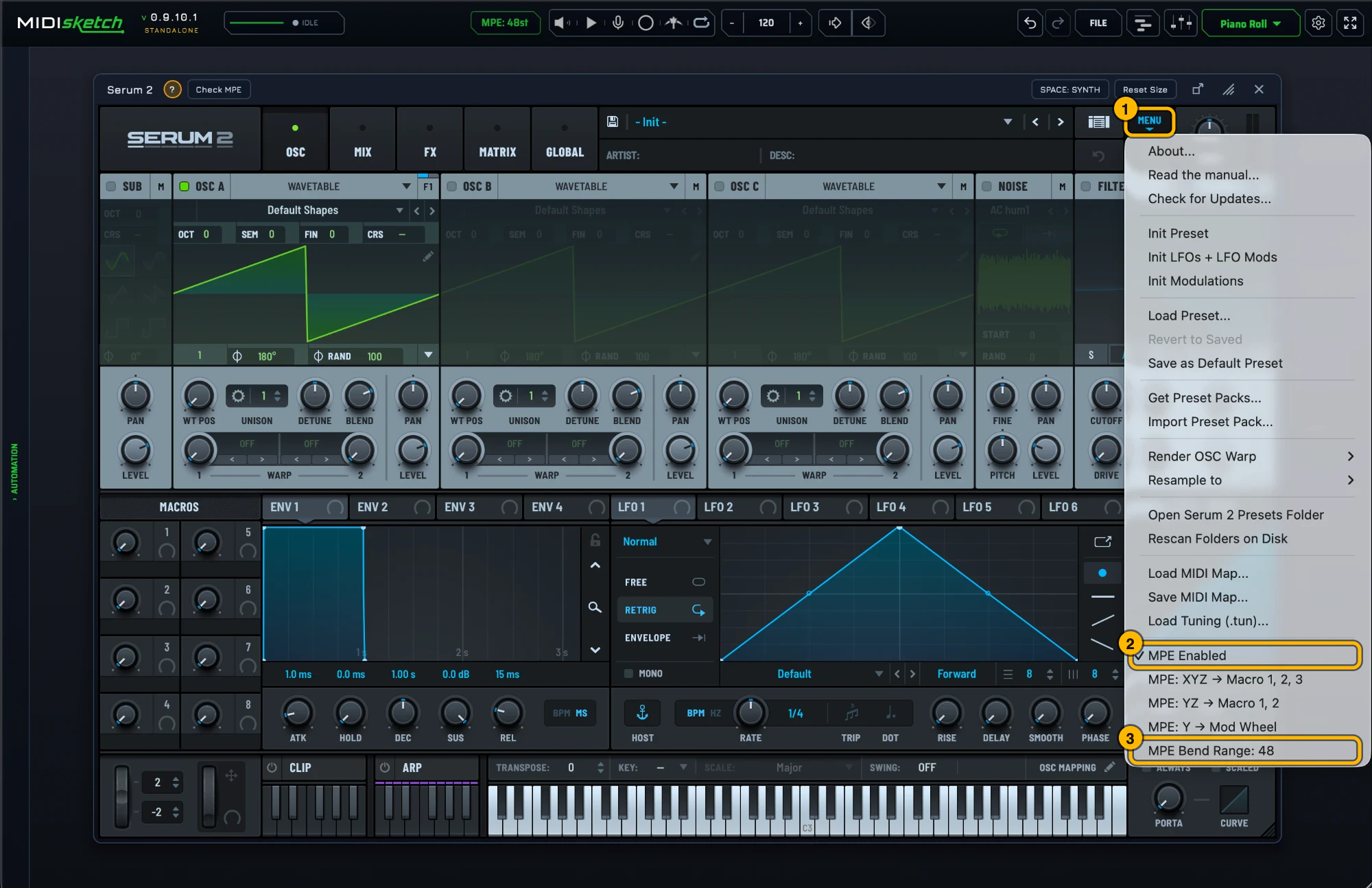
MPE setup Menu › MPE Enabled Menu › MPE Pitch Bend: 48 Also shows up as serum2
MPE setup Menu › MPE Enabled - ticked Menu › MPE bend range: 48 (match the MPE pill) Make it the default: Global settings › MPE › tick 'MPE enabled by default' Serum 2's settings. Click to see it full size. Also shows up as serumfx
Effect plugin
Pitch Wheel setup Switch to Pitch Wheel mode in MIDI Settings Set the plugin's pitch bend range to match MIDISketch's Pitch Wheel range Effect plugin
MPE setup Enable MPE Set MPE pitch bend range to 48 MPE setup Requires RISE or MPE receiver modules for parsing Effect plugin
Effect plugin
Effect plugin
Pitch Wheel setup Switch to Pitch Wheel mode in MIDI Settings Set the plugin's pitch bend range to match MIDISketch's Pitch Wheel range Pitch Wheel setup Switch to Pitch Wheel mode in MIDI Settings Set the plugin's pitch bend range to match MIDISketch's Pitch Wheel range Pitch Wheel setup Switch to Pitch Wheel mode in MIDI Settings Set the plugin's pitch bend range to match MIDISketch's Pitch Wheel range MPE setup Settings (gear icon) › Enable MPE MPE Bend Range: 48 MPE setup MPE button on main page Pitch Bend Up/Down › MPE Right-click › Lock Pitch Wheel setup Switch to Pitch Wheel mode in MIDI Settings Set the plugin's pitch bend range to match MIDISketch's Pitch Wheel range MPE setup ROLI Studio Player: MPE presets ready Pitch Wheel setup No MPE support: monophonic sub-bass engine MPE setup Reaktor-based port with MPE support. High CPU overhead possible Effect plugin
MPE setup STATUS: Enable MPE MPE setup STATUS: Enable MPE Effect plugin
Pitch Wheel setup Switch to Pitch Wheel mode in MIDI Settings Set the plugin's pitch bend range to match MIDISketch's Pitch Wheel range MPE setup Menu › MIDI Settings › Pitch Wheel: 48 Click Make Default to save MPE setup Menu › MIDI Settings › Pitch Wheel: 48 Click Make Default to save MPE setup Settings › MIDI Input Channel › MPE Set Global Pitch Bend Range to 48 MPE setup Settings › MIDI Input Channel › MPE Set Global Pitch Bend Range to 48 Also shows up as syntronik2
Pitch Wheel setup Switch to Pitch Wheel mode in MIDI Settings Set the plugin's pitch bend range to match MIDISketch's Pitch Wheel range Pitch Wheel setup Switch to Pitch Wheel mode in MIDI Settings Set the plugin's pitch bend range to match MIDISketch's Pitch Wheel range T
Pitch Wheel setup Switch to Pitch Wheel mode in MIDI Settings Set the plugin's pitch bend range to match MIDISketch's Pitch Wheel range MPE setup Enable MPE in plugin settings MPE Pitch Bend: 48 Master Channel: 1 MPE setup Enable MPE in plugin settings MPE Pitch Bend: 48 Master Channel: 1 MPE setup Enable MPE Set MPE pitch bend range to 48 MPE setup Enable MPE Set MPE pitch bend range to 48 Pitch Wheel setup Switch to Pitch Wheel mode in MIDI Settings Set the plugin's pitch bend range to match MIDISketch's Pitch Wheel range Forum claims MPE but official manual has no MPE documentation
MPE setup Build tab › MPE settings (top right) Bend range 48 Effect plugin
U
MPE setup MPE button on main page Pitch Bend Up/Down › MPE Right-click › Lock MPE setup Ultra.audio Ultra: MPE added Aug 2026 - enable it in the synth's settings Bend range 48 Not AAS Ultra Analog Pitch Wheel setup Switch to Pitch Wheel mode in MIDI Settings Set the plugin's pitch bend range to match MIDISketch's Pitch Wheel range V
Effect plugin
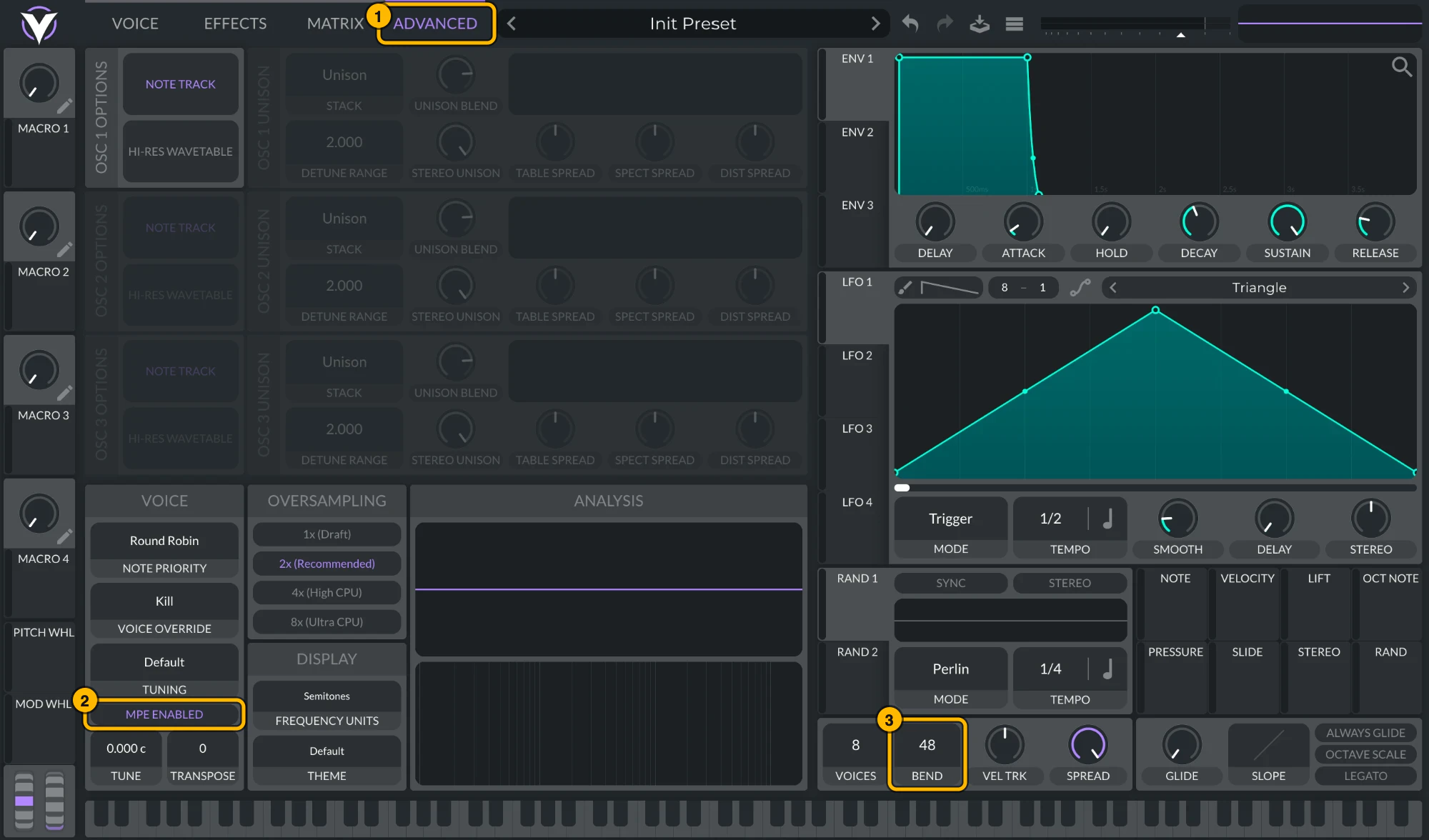
MPE setup Needs VCV Rack Pro in a DAW (the free Rack is standalone only) MIDI › CV module: Polyphony mode MPE One voice per channel Bend range 48 MPE setup Needs VCV Rack Pro in a DAW (the free Rack is standalone only) MIDI › CV module: Polyphony mode MPE One voice per channel Bend range 48 MPE setup Advanced Tab › MPE Enabled (bottom-left checkbox) Voices: 16+ Pitch Bend Range: 48 Vital's settings. Click to see it full size. MPE setup Settings (gear icon) › Enable MPE MPE Bend Range: 48 MPE setup Requires Cherry Audio MPE Interface module and poly cable patching W
MPE setup Configure 16 individual parts on channels 2-15 Hardware has MPE; VST3 port unconfirmed
Pitch Wheel setup Switch to Pitch Wheel mode in MIDI Settings Set the plugin's pitch bend range to match MIDISketch's Pitch Wheel range Pitch Wheel setup Switch to Pitch Wheel mode in MIDI Settings Set the plugin's pitch bend range to match MIDISketch's Pitch Wheel range Hardware has MPE; VST3 port unconfirmed
Pitch Wheel setup No MPE: Poly Aftertouch only Disable your DAW's MPE mode and send on Ch 1 Pitch Wheel setup No MPE: Poly Aftertouch only Disable your DAW's MPE mode and send on Ch 1 Pitch Wheel setup Switch to Pitch Wheel mode in MIDI Settings Set the plugin's pitch bend range to match MIDISketch's Pitch Wheel range X
MIDI chord/arp generator: not a synth
Z
Also shows up as zebra3
MPE setup MPE ready out of the box Pitch Wheel setup No MPE support: legacy voice structure Pitch Wheel setup No MPE support: legacy voice structure Pitch Wheel setup No MPE: use Pitch Wheel mode Edit › Pro Edit › Common: set Bend Range Up and Down to match your Pitch Wheel range in MIDI Settings Pitch Wheel setup No MPE: use Pitch Wheel mode Edit › Pro Edit › Common: set Bend Range Up and Down to match your Pitch Wheel range in MIDI Settings
No synth matches. Check the spelling, or see Not listed? below.
Not Listed?
Look in the synth's settings for MPE and turn it on.
Set its pitch bend range to 48, or set MIDISketch to match the synth: settings gear › MIDI Settings... › MPE & PITCH › PITCH BEND .
No MPE at all? Click the MPE pill and switch MIDISketch to PW (Pitch Wheel).
With the synth loaded inside MIDISketch, Check MPE under it tests a hidden copy of the synth: is MPE on, does its bend range match MIDISketch's, does it react to pressure and slide. A synth missing here, or wrong? Tell us on the support page and we'll add it.
DAW Guides
Try MIDISketch free for 7 days
VST3 + AU + CLAP + AAX · macOS, Windows & Linux · Lifetime license
Get MIDISketch

 FL Studio
 Ableton Live
 Logic Pro
 Bitwig Studio
 REAPER
 Pro Tools