ELIOTONIC / COMPATIBILITY
← Back to MIDISketch
DAW & Synth Compatibility
Setup instructions for confirmed compatible DAWs and synths.
We need your help. This list only includes DAWs and synths we have personally tested. If you're using MIDISketch with something not listed here, please
submit a report so we can grow this database together. Reports are reviewed before they appear.
DAWs
MIDISketch hosts your synth inside itself, so whether the DAW speaks MPE natively does not matter. It loads as an instrument, you draw in its roll, and the synth inside hears every note bend on its own channel.
* In Pro Tools the VST3 runs inside a VST3 host loaded as AAX (Blue Cat PatchWork and similar wrappers). The native AAX build needs no wrapper: get it on the Pro Tools page.

FL Studio 20+
Confirmed
VST3
Primary development target. FL Studio has no MPE output of its own, which is the exact gap MIDISketch fills: load it as a VST3 instrument, host your synth inside it, and every note carries its own bend. No extra routing to set up.
Quick setup: Load MIDISketch as a VST3 instrument on a channel. Use the built-in plugin host to load your synth inside MIDISketch.

Ableton Live 11+
Confirmed
VST3
Tested and fully compatible. Live has its own MPE pipeline too, so MIDISketch can drive Live’s instruments as well as the synth you host inside it. Drag and drop MIDI export works seamlessly.
Quick setup: Add MIDISketch as an instrument on a MIDI track. Ableton will automatically route MPE data correctly.

Logic Pro
Confirmed
VST3AU
Loads as an AU. Logic hosts Audio Units only, so the VST3 from the same installer is for other DAWs. The recommended way is MIDISketch MIDI FX on your synth's track. You can also load MIDISketch as an instrument and host your synth inside it.
Quick setup: Put MIDISketch MIDI FX in your synth track's MIDI FX slot, turn on MPE in the synth and set its bend range to 48.

Reaper
Confirmed
VST3
Officially supported since MIDISketch v0.7. REAPER’s flexible routing makes it an excellent host for MPE output.
Quick setup: Insert MIDISketch as a VSTi on a track. Reaper supports full MPE pass-through natively.

Bitwig Studio
Confirmed
VST3
Loads as a VST3 or a CLAP. The CLAP build is the one that gives Bitwig native per-note output into its own instruments. Bitwig has strong MPE routing of its own, so both the internal synth host and Bitwig’s own instruments work.
Studio One 5+
Confirmed
VST3
Loads as a VST3. Piano-key preview while the transport is stopped was fixed for Studio One in v0.9.8.
Cubase / Nuendo 12+
Confirmed
VST3
Loads as a VST3 in Cubase and Nuendo 12+.

Pro Tools
Confirmed
AAXVST3 via AAX host
MIDISketch runs in Pro Tools as a native AAX plugin on Windows and macOS. It is signed with PACE, so it loads in a normal Pro Tools install. Get it and the install steps on the Pro Tools page. A VST3 host loaded as AAX (Blue Cat PatchWork and similar wrappers) with MIDISketch inside it works too.
Reason 12+
Confirmed
VST3
Loads as a VST3 in Reason 12+.
GarageBand (Mac)
Confirmed
AU
GarageBand for Mac only, on a desktop or laptop. GarageBand for iPhone and iPad cannot load desktop plugins. Loads as an AU instrument. GarageBand has no MPE of its own, so the sound comes from inside MIDISketch: host a VST3 or AU synth in it, or play the built-in MIDISketch Synth or a SoundFont. Every note keeps its own bend.
Quick setup: On a Software Instrument track, open Plug-ins in the Track panel, click the instrument slot and choose AU Instruments → Eliotonic → MIDISketch. Double-click the slot to open it. Not listed? Quit and reopen GarageBand so it rescans Audio Units.
Synths & Plugins
Setting up a synth? Synth Setup has the MPE steps for every synth MIDISketch knows, searchable.
Almost any synth works with MIDISketch
Basic MIDI (notes, velocity, sustain) works with virtually every instrument plugin out of the box, no special setup needed. However, for advanced MPE features like per-note pitch bending, gliding notes, pitch points, and MPE XYZ controls (Slide, Pressure), your synth must support MPE and have it enabled.
The synths listed below have been tested with full MPE support.
MPE & Pitch Bend: for the best experience with MIDISketch, enable MPE in your synth and set the pitch bend range to 48 semitones. Each synth below has its own setup steps.
Serum 2
Verified
MPE On by DefaultPB Range: 48 st
Full MPE support enabled by default in Serum 2. Pitch bend range is already set to 48. No configuration needed, just load and play.
Known quirk (Serum 2.1.4): routing Pressure through a Macro (the YZ / XYZ → Macro option) into a fast target like oscillator level can click at note-on. Update to 2.1.5+, or map Expr Z (Press.) directly in Serum’s Matrix instead of through a Macro.
Serum 1
Verified
MPE Manual EnablePB Range: 48 st
Serum 1 requires manual MPE activation. Click the MENU button in the top right, select "MPE enabled" from the dropdown list, and ensure you set the pitch bend range to 48 semitones (located at the bottom of the menu dropdown).
Setup steps
- Click the "MENU" button in the top-right corner of Serum's interface.
- Locate and check "MPE enabled" in the dropdown list.
- At the bottom of the same MENU dropdown, set the MPE Pitch Bend range to 48 semitones.
Vital
Verified
MPE Manual Enable
Vital supports MPE but it must be manually enabled. Go to the ADVANCED tab, then look in the bottom-left corner for the "MPE ENABLED" button.
Note: loading presets that don't have MPE enabled will turn it off. Consider automating the MPE parameter to keep it locked on, since slides (per-note expression) require MPE to be active.
Setup steps
- Open Vital's interface.
- Click the "ADVANCED" tab at the top of the window.
- In the bottom-left corner, find and click "MPE ENABLED".
- Set the pitch bend range to 48 semitones.
- Presets may disable MPE, so automate the MPE parameter to keep it locked on.
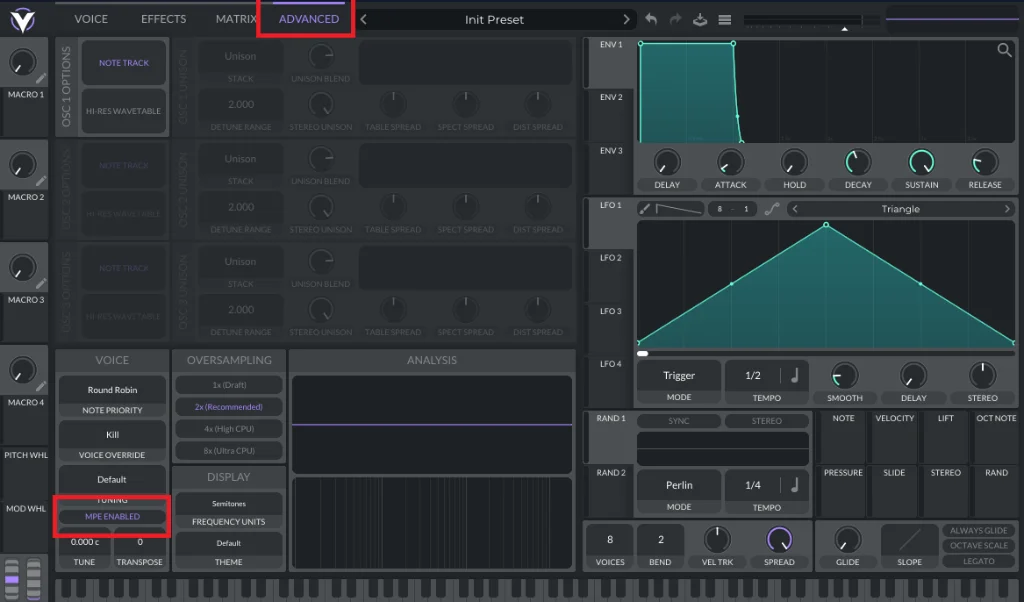
Vital: go to the ADVANCED tab · bottom-left corner · enable MPE
Using a DAW or synth that isn't listed here? Tell us how it went:
submit a compatibility report. Reports are reviewed before appearing in the list.