
MIDISketch in LMMS
LMMS only loads VST2 plugins, so it can’t open a VST3 like MIDISketch on its own. The way in is Element, a free plugin host by Kushview: LMMS loads Element’s VST2, and Element loads the VST3. You get MIDISketch’s per-note pitch bends and expression inside an LMMS project, on a synth hosted in MIDISketch, with LMMS’s tempo and transport.
What You Need
- MIDISketch, installed as usual. Element loads its VST3.
- LMMS 1.2.2 for Windows (64-bit), the current stable release, from lmms.io.
- Element 1.1.1 for Windows, Kushview’s free version. It installs a VST2 as well as VST3 and CLAP, and LMMS loads the VST2.
Tested on Windows 10 with LMMS 1.2.2, Element 1.1.1 and MIDISketch 0.9.10.5, with Serum 2 inside MIDISketch: sound, Trigger mode, Play mode and tempo all work. Saving and reopening the LMMS project has not been tested yet.
Setup
- Install LMMS 1.2.2 for Windows. Its installer is unsigned, so if Windows SmartScreen warns, click More info → Run anyway.
- Install Element 1.1.1, the free version from Kushview, and keep VST Plugins ticked: LMMS needs Element’s VST2.
- Open the Element app from the Start menu and choose View → Plugin Manager → Scan. Wait until MIDISketch appears (you can cancel the rest, and what was scanned is kept), then close Element. Scan here rather than inside LMMS, where Element’s menus close as soon as they open.
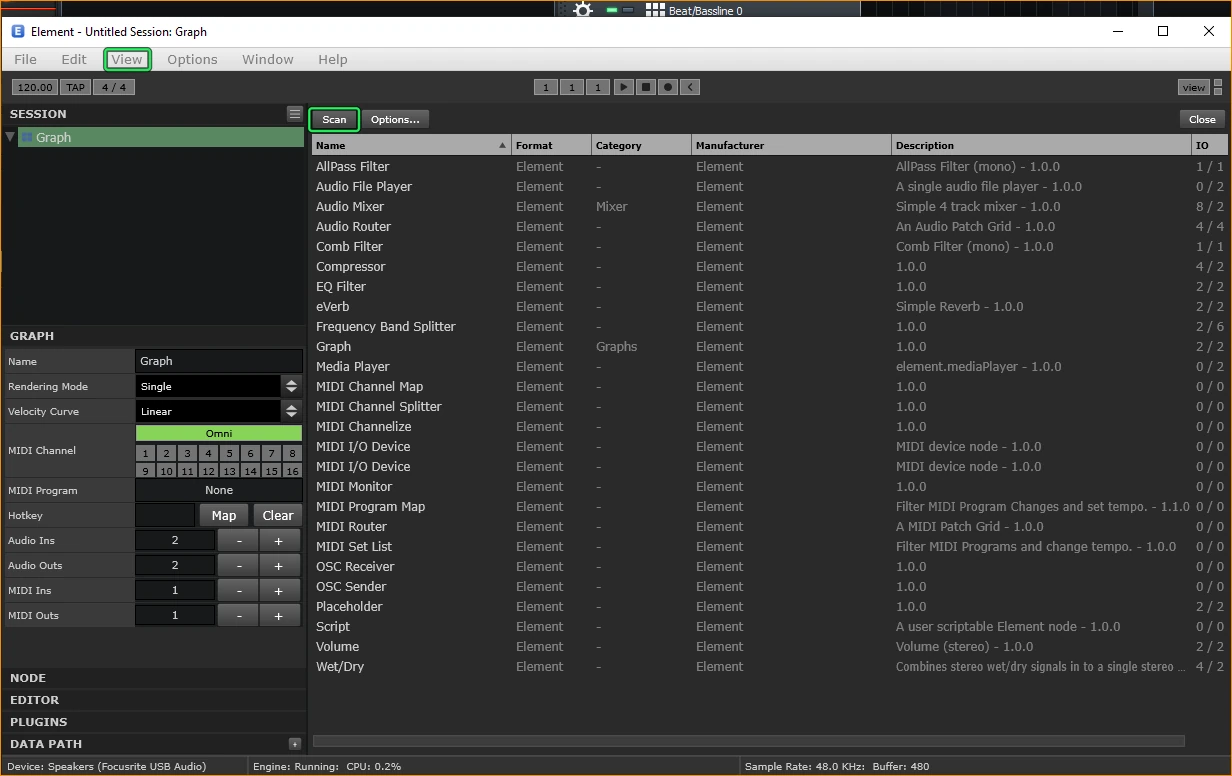
View → Plugin Manager in the Element app, then Scan. 
MIDISketch found (the VST3 is the one to use). You can cancel the rest of the scan here. - In LMMS, drag VeSTige from Instrument Plugins into the Song-Editor. Click the new track’s name, then the green folder icon, and open
C:\Program Files\Steinberg\VSTPlugins\KV-Element.dll. Click Show/hide GUI.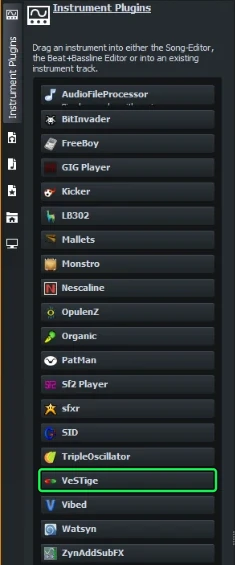
VeSTige in Instrument Plugins. 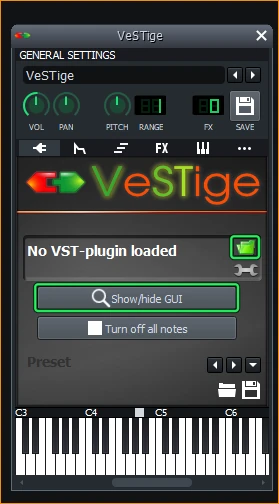
The green folder icon opens Element; Show/hide GUI shows it. 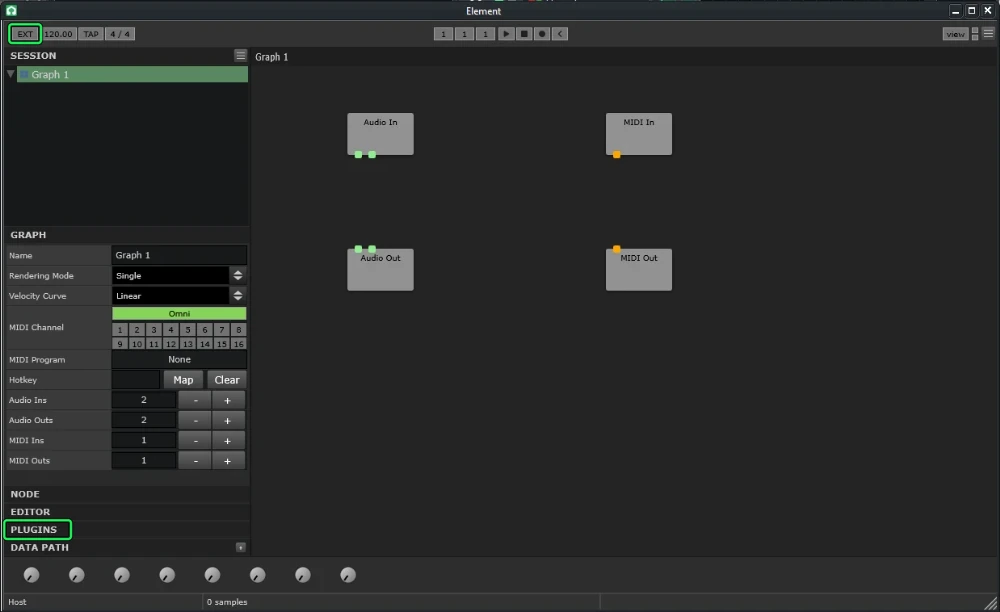
Element inside LMMS, with an empty graph. EXT is at the top left and PLUGINS in the left column. - In Element, open PLUGINS, search
midisketchand drag MIDISketch (vst3) onto the graph. It is listed under Instrument|Synth; the entry under Other with no format tag is the CLAP. If the list is empty, reload Element in VeSTige.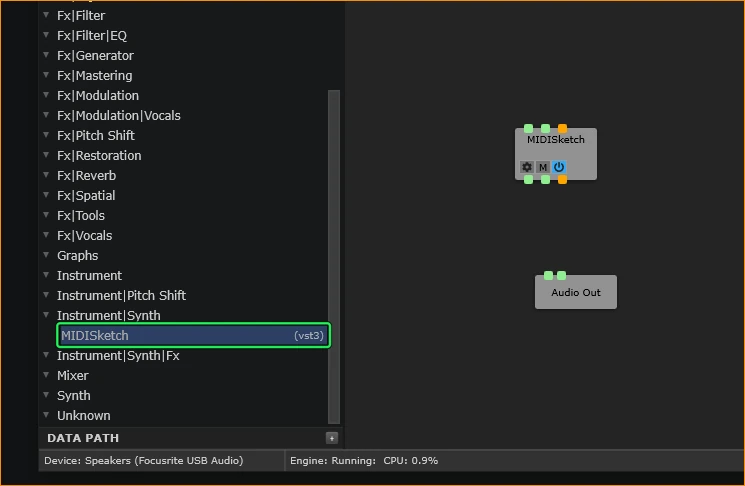
Drag MIDISketch (vst3) from Instrument|Synth. - Wire the graph: MIDI In to MIDISketch’s top orange port, and MIDISketch’s bottom green ports to Audio Out. MIDISketch’s bottom orange port to MIDI Out is optional.
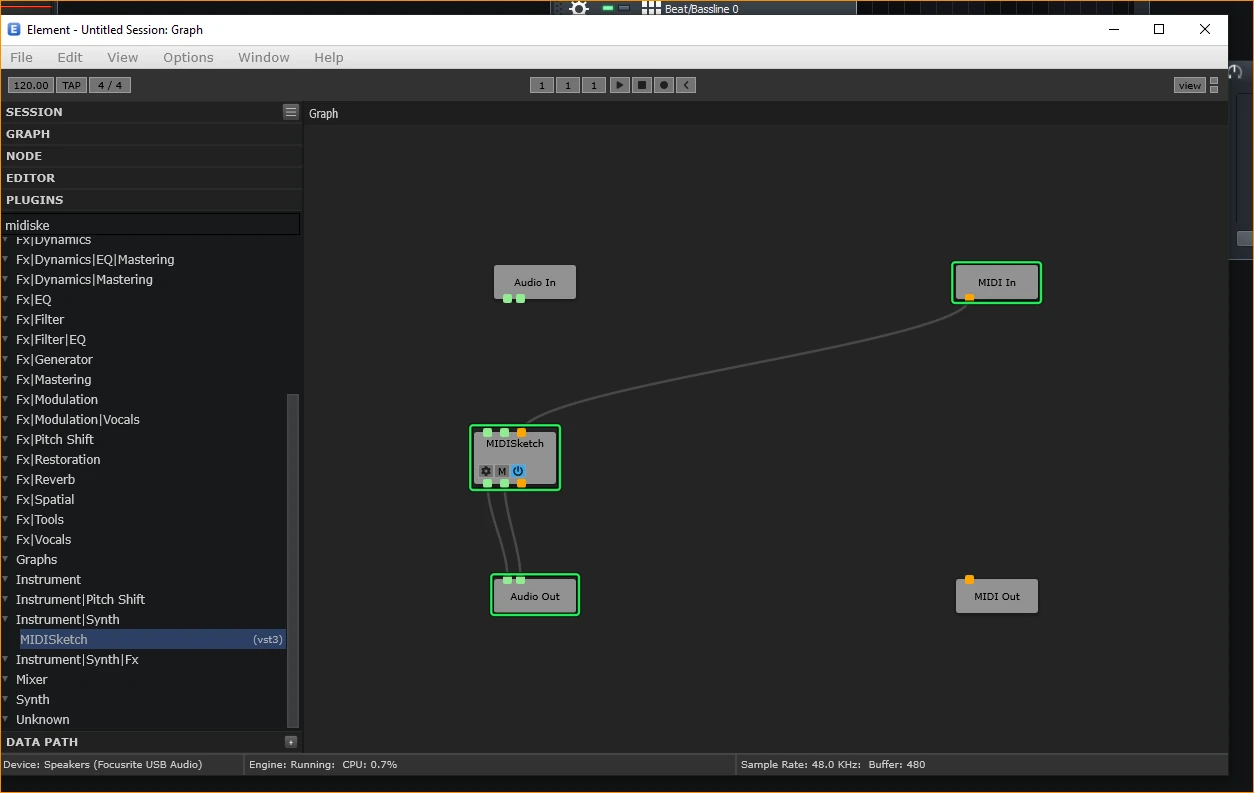
Wired: MIDI In to MIDISketch, MIDISketch to Audio Out. This was taken in the Element app; the graph looks the same inside LMMS. - Turn on EXT at the top left of Element’s window, so Element and MIDISketch follow the LMMS tempo. Without it Element runs at its own 120 BPM.
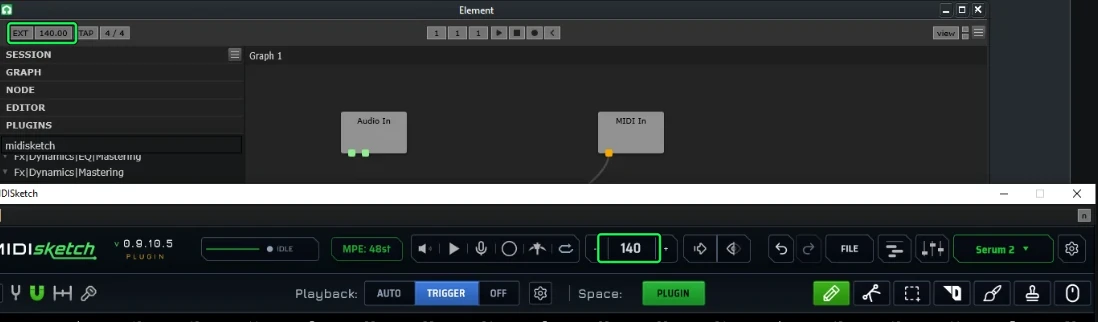
With EXT on, Element and MIDISketch both read 140, the LMMS tempo. - Open MIDISketch with the gear icon on its box (it opens in its own window) and load a synth or a SoundFont in the Synth tab. MIDISketch makes the sound, and LMMS plays Element’s audio.
- Play it from LMMS. In Trigger mode, notes you draw on the Element track’s pattern in the LMMS piano roll (double-click the pattern) each start a MIDISketch pattern. In Play mode, MIDISketch follows LMMS’s play, stop and position.
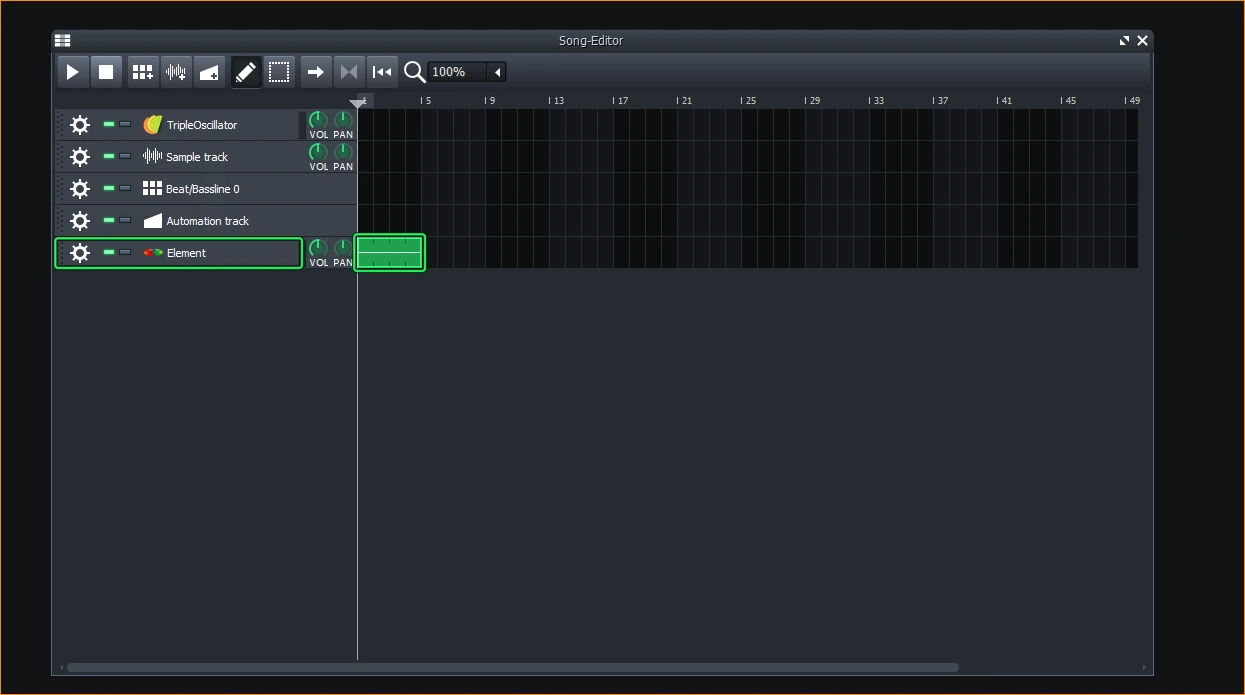
The Element track and its pattern. Double-click the pattern to draw the notes that trigger MIDISketch. 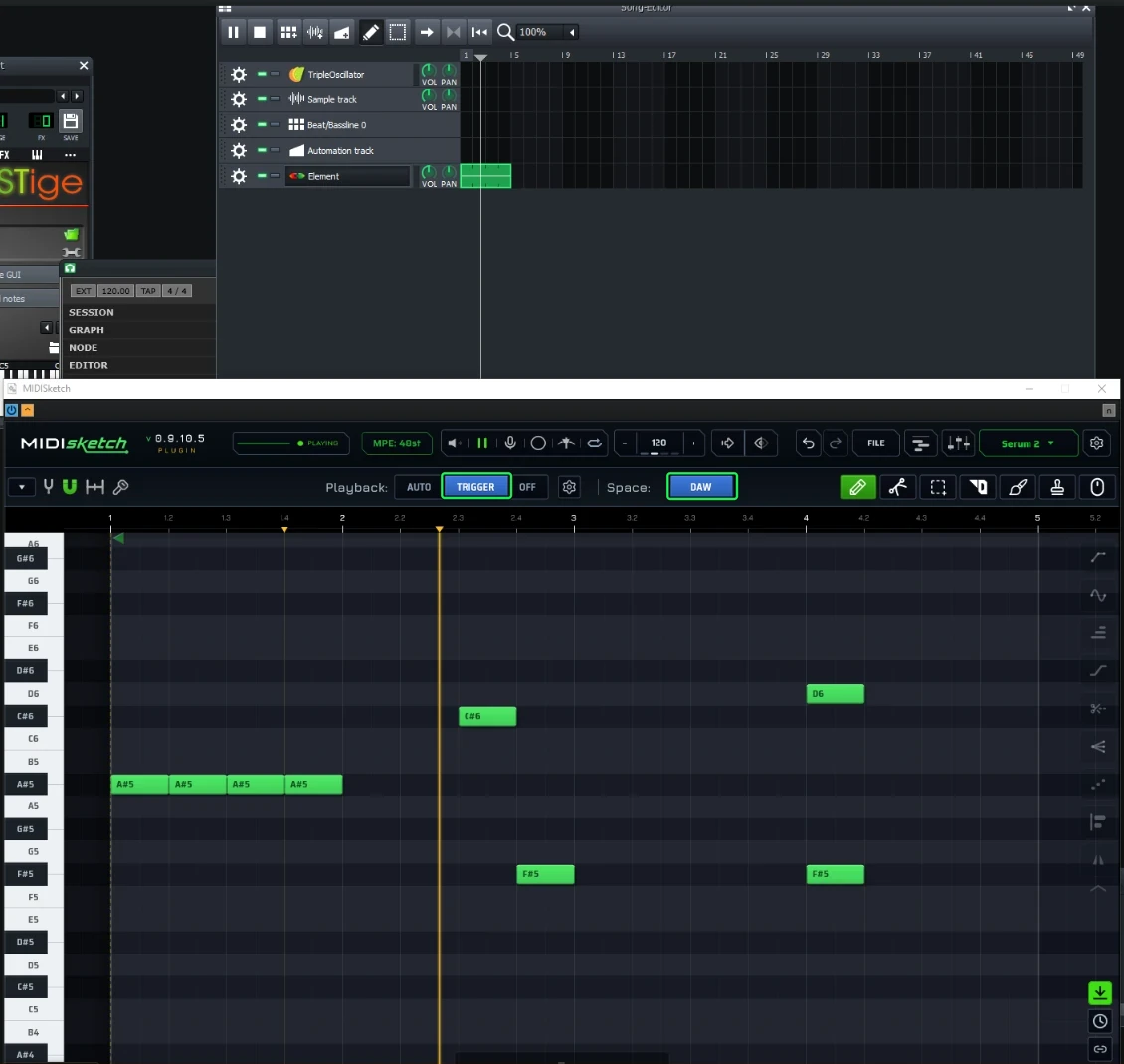
MIDISketch playing with LMMS: Playback on TRIGGER, Space on DAW. This shot was taken before EXT was on, so it reads 120.
Known Issues
- Element’s menus close at once inside LMMS, and right-click does nothing there. Its buttons (EXT, the ports, the plugin list) work. Scan plugins in the Element app, as in step 3.
- MIDISketch’s MIDI output cannot play LMMS’s own instruments, since LMMS does not route a plugin’s MIDI out. Use a synth inside MIDISketch.
- One user saw every key press arrive twice and the mouse wheel not scroll the roll. Neither happened in our test. If you see them, name things in the MIDISketch standalone, use the scrollbars, and tell us your LMMS, Element and Windows versions at support.
The Other Way: Standalone and Export
MIDISketch also runs on its own, next to LMMS, with no plugin host. The standalone installs with the plugin, and on Linux it is the main download.
- Write the part in the standalone with the built-in synth, a SoundFont or your synth hosted inside it.
- Open FILE → Export... and pick the AUDIO tab’s RENDER for a WAV with every bend and expression baked in, or the MIDI tab’s EXPORT TO FILE for the notes.
- Bring the file into your LMMS song.
LMMS Questions
Can LMMS load VST3 plugins?
Not on its own. LMMS 1.2.2 loads VST2 plugins through its VeSTige instrument. Element, a free plugin host, loads as a VST2 in VeSTige and can host VST3 plugins inside it, which is how this guide runs MIDISketch in LMMS.
Does LMMS support MPE or per-note pitch bend?
LMMS has no MPE, so a MIDI file with per-note bends loses them there. Inside this setup the bends never leave MIDISketch: it plays its hosted synth with every note bending on its own, and LMMS hears the audio.
Is Element free?
Yes. Element 1.1.1 is Kushview’s free, fully working version, and it installs the VST2 that LMMS needs. Newer builds are for paid supporters.
Does this work on Linux or macOS?
It has been tested on Windows only. LMMS has no plugin support on macOS. On Linux, run the MIDISketch standalone next to LMMS and export audio or MIDI instead.
Does MIDISketch follow the LMMS tempo?
Yes, with EXT turned on at the top left of Element’s window. In Play mode MIDISketch also follows LMMS’s play, stop and position, and in Trigger mode notes in an LMMS pattern start MIDISketch’s patterns.
Guides for Other DAWs
VST3 + AU + CLAP + AAX · macOS, Windows & Linux · Lifetime License